


In this article
- What are the data transfer speeds of the USB-A 3.0 data ports on the Type-C Pro Hub Adapter with Ethernet?
- Can the Type-C port be used to output video or data transfer?
- What is the max pass-through wattage for the Type-C Port?
- What is the max resolution/refresh rate that the HDMI port is capable of?
- What is the speed of the Ethernet port on the Type-C Pro Hub with Ethernet?
- Fixing Ethernet Issues
What are the data transfer speeds of the USB-A 3.0 data ports on the Type-C Pro Hub Adapter with Ethernet?
The USB-A 3.0 data ports on the Type-C Pro Hub Adapter with Ethernet support data transfer speeds of up to 5 Gbps. Please note that these ports do not support charging or CD drives.
Can the Type-C port be used to output video or data transfer?
What is the max pass-through wattage for the Type-C Port?
The max pass-through wattage for the Type-C Pro Hub with Ethernet's Type-C port is 87W.
What is the max resolution/refresh rate that the HDMI port is capable of?
The max resolution that the Pro Hub with Ethernet HDMI's port is 4K at 30Hz.
What is the speed of the Ethernet port on the Type-C Pro Hub with Ethernet?
This hub supports 10/100/1000 Gigabit Ethernet speeds.
Fixing Ethernet Issues
1) Disconnect your Multi-Port Adapter from your computer
2) Open up your Network Preferences
3) Manually remove "USB 10/100/1000 LAN" from your Network by clicking the "-" symbol

4) Plug your Multi-Port Adapter back into your computer
5) Manually add in "USB 10/100/1000 LAN" to your Network Preferences by clicking the "+" symbol
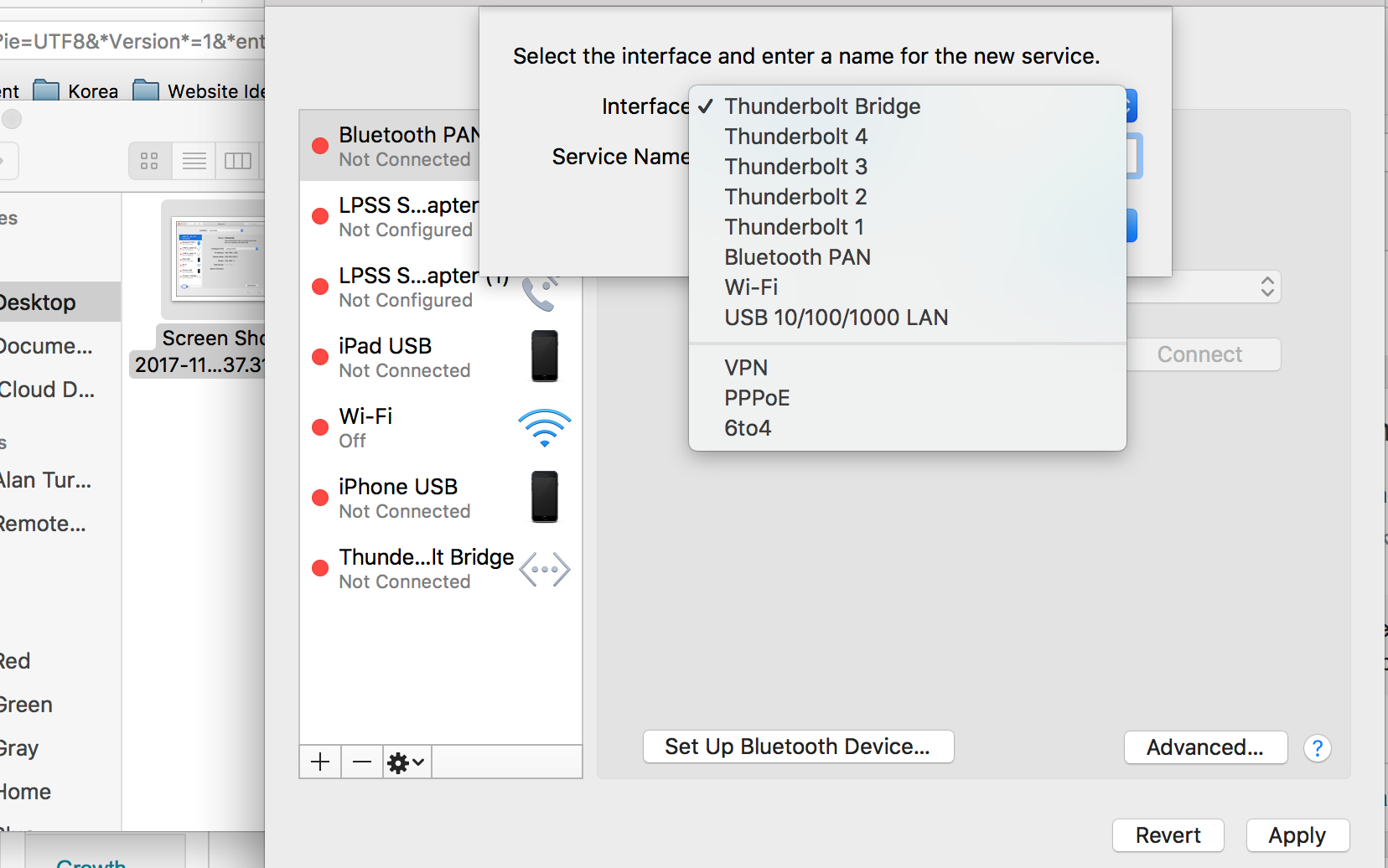
6) After adding your Ethernet back in, please click on "Advanced" tab
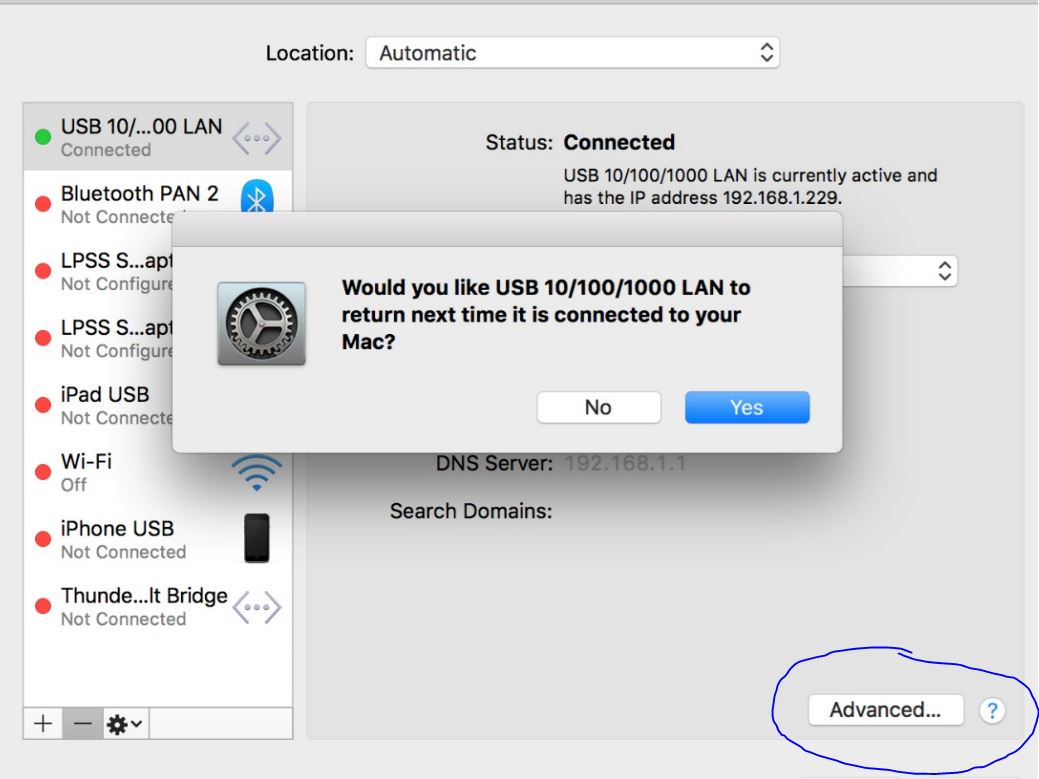
7) In the "Advanced" tab, click on "Renew DHCP Lease" button
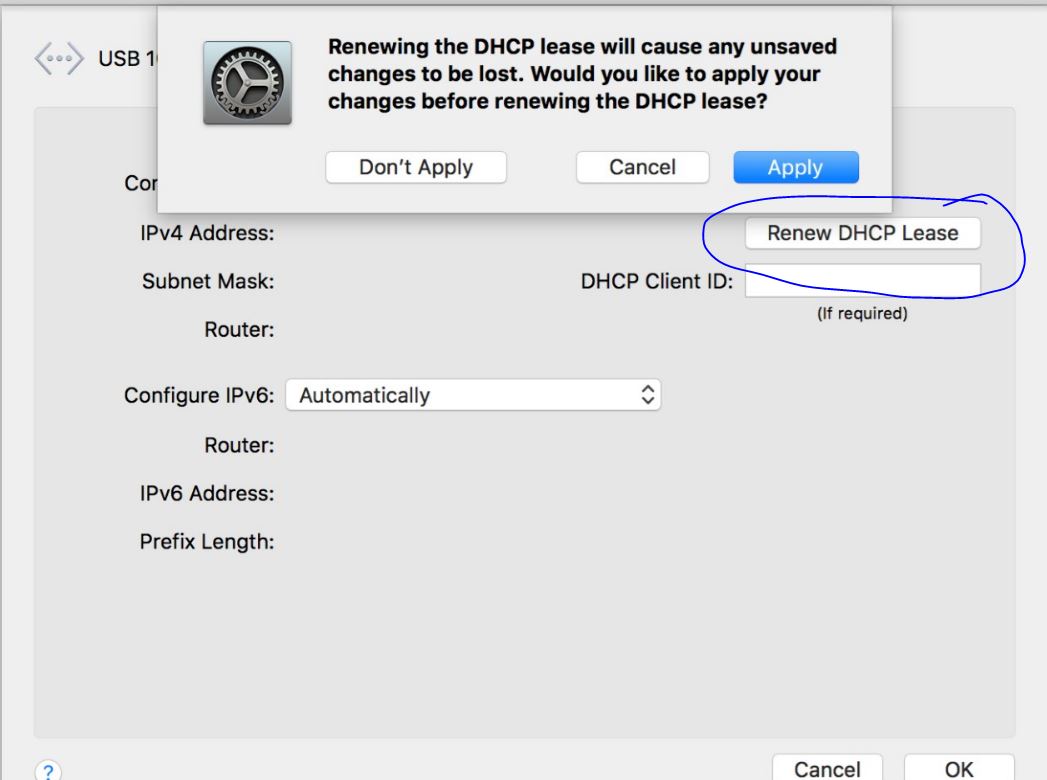
8. Click "OK" and check your Ethernet connection. "USB 10/100/1000 LAN" should be connected now.
If you are unable to add the USB LAN interface back in after this, please do the following Shut down your Mac completely. Wait 30 seconds, then press the power button to turn it back on. (On Intel Macs, you can also try an hardware controller reset: shut down, hold Shift+Control+Option+Power for 10 seconds, then release and power on.).
Remove the Type-C Hub from the Macbook and follow the below instructions :
- Step 1: Completely shut down the computer.
- Step 2: Attach the MagSafe or USB-C power adapter to your computer so you have a power source.
- Step 3: Press the left-side Shift (⇧), Control, and Option keys, along with the power button on your keyboard all at the same time. (for 10 seconds)
- Step 4: Release all of the keyboard keys at the same time, including the power button.
- Step 5: Turn your computer back on using the power button.
Reconnect the Type-C Hub to the Macbook.
Instructional video:
Have more questions? Submit a request
Related Articles
- Quick Start Guide - Type-C Pro Hub Adapter with Ethernet
- Type-C Pro Hub Adapter with Ethernet ; Setup & Troubleshooting Guide
- Technical Specifications - Type-C Pro Hub Adapter with Ethernet
- Device Compatibility - Type-C Pro Hub Adapter with Ethernet
- Safety and Compliance Documentation - Type-C Pro Hub Adapter with Ethernet
For Apple Silicon Macs (M1/M2/M3/M4): Shut down your Mac completely. Wait 30 seconds, then press and hold the power button until you see "Loading startup options." Release the button, select your startup disk, and click Continue. This process resets the hardware controller on Apple Silicon Macs.
Comments
0 comments
Article is closed for comments.