


In this article
- Are you able to use 2 separate Hubs connected to 1 Mac Mini?
- Why is my computer not recognizing my newly installed Solid-State Drive (SSD)?
- Can I use both the standard SD card slot and Micro SD card slot at the same time?
- Does this Hub cause Wi-Fi slowdown?
- Does the stand and hub cause the Mac Mini/Studio to overheat?
- Are UHS-ii cards now supported?
- Will the USB-C port allow me to connect to a monitor?
- Is the Stand & Hub for Mac Mini/Studio with NVMe SSD Enclosure compatible with the new M4 Mac mini?
- Can I run macOS from an external drive installed in the enclosure of the Mac mini Stand & Hub with NVMe?
- Does the hub affect the cooling of my Mac Mini or Mac Studio?
- What type of SSDs does the hub support?
- Why am I not getting the advertised speeds of my NVMe on my Mac Studio/Mini Stand & Hub?
- Why can't I hear Audio on my Headphones when connected to the Aux Port of this Hub?
- What M.2 SATA drives are compatible with this Hub?
Are you able to use 2 separate Hubs connected to 1 Mac Mini?
Unfortunately not. Our Mac Mini/Studio Stand & Hub w/ NVMe enclosure is bus-powered and requires power from the connected host device.
The hub has a shared wattage of around 15W which is evenly distributed throughout all available ports (with an installed SSD consuming 7.5W)
Why is my computer not recognizing my newly installed Solid-State Drive (SSD)?
Your SSD may not be recognized because it needs to be formatted before use. Follow these steps based on your operating system:
For macOS:
- Open Finder and go to your Applications Folder.
- Launch Disk Utility from the Utilities folder.
- Under External, select the SSD.
- Click on Erase at the top of the Disk Utility application.
- Choose the desired format (APFS for Apple devices or exFat for compatibility with Apple and Windows).
For Windows 11/Windows 10:
- Open File Explorer and navigate to This PC.
- Right-click on the SSD under Devices and Drives.
- Select Format...
- Choose NTFS (Windows Only) or exFat based on your requirements.
Can I use both the standard SD card slot and Micro SD card slot at the same time?
We suggest using only one card slot at a time for optimal performance.
Does this Hub cause Wi-Fi slowdown?
We can confirm that this Hub will not affect the Wi-Fi signal however in some cases, interference may occur. If this is the case, we recommend connecting your Mac Mini to the 2.4Ghz network (v.s 5Ghz) for optimal performance.
Does the stand and hub cause the Mac Mini/Studio to overheat?
The stand is built to have the Mac Mini or Mac Studio raised a bit to provide a space where the air and heat can escape. This will provide better air ventilation and heat distribution keeping the hub and your Mac device within standard operating temperatures.
Are UHS-ii cards now supported?
The Hub will support UHS-i and UHS-ii cards at UHS-i speeds.
Will the USB-C port allow me to connect to a monitor?
No, USB-C ports are dedicated data ports for connecting your peripherals and transferring data up to 10Gbps.
Will this hub support more than 2 drives?
Our Stand & Hub for Mac Mini/Studio w/ NVMe Enclosure is a bus-powered hub and has a shared wattage of 15W. (with an installed SSD consuming 7.5W)
A bus-powered hub draws all its power from the host computer's port interface. It does not need a separate power connection, however, many devices require more power than this method can provide and may not work in this type of hub.
*We advise using 1 drive at a time for optimum performance.
Supported Peripherals
- External Hard Drives (1 drive at a time)
- Flash Drives
- USB Mice/Keyboards
- Headphones
- Microphones
- Webcams
& Other USB-A or USB-C devices that do not exceed 3.5W
Does the 3.5mm audio jack support both input and output?
Yes, the 3.5mm audio jack supports both input and output functionalities. It can be used for audio input, such as connecting external microphones, and for audio output, such as connecting headphones/speakers.
Can I use a USB Microphone on the Stand & Hub?
Our Stand & Hub for Mac Mini/Studio w/ NVMe Enclosure is a bus-powered hub and has a shared wattage of 15W. (with an installed SSD consuming 7.5W)
Supported Peripherals
- External Hard Drives (1 drive at a time)
- Flash Drives
- USB Mice/Keyboards
- Headphones
- Microphones
- Webcams
Is the Stand & Hub for Mac Mini/Studio with NVMe SSD Enclosure compatible with the new M4 Mac mini?
Our product development team is currently working on a project for the new M4 Mac mini. 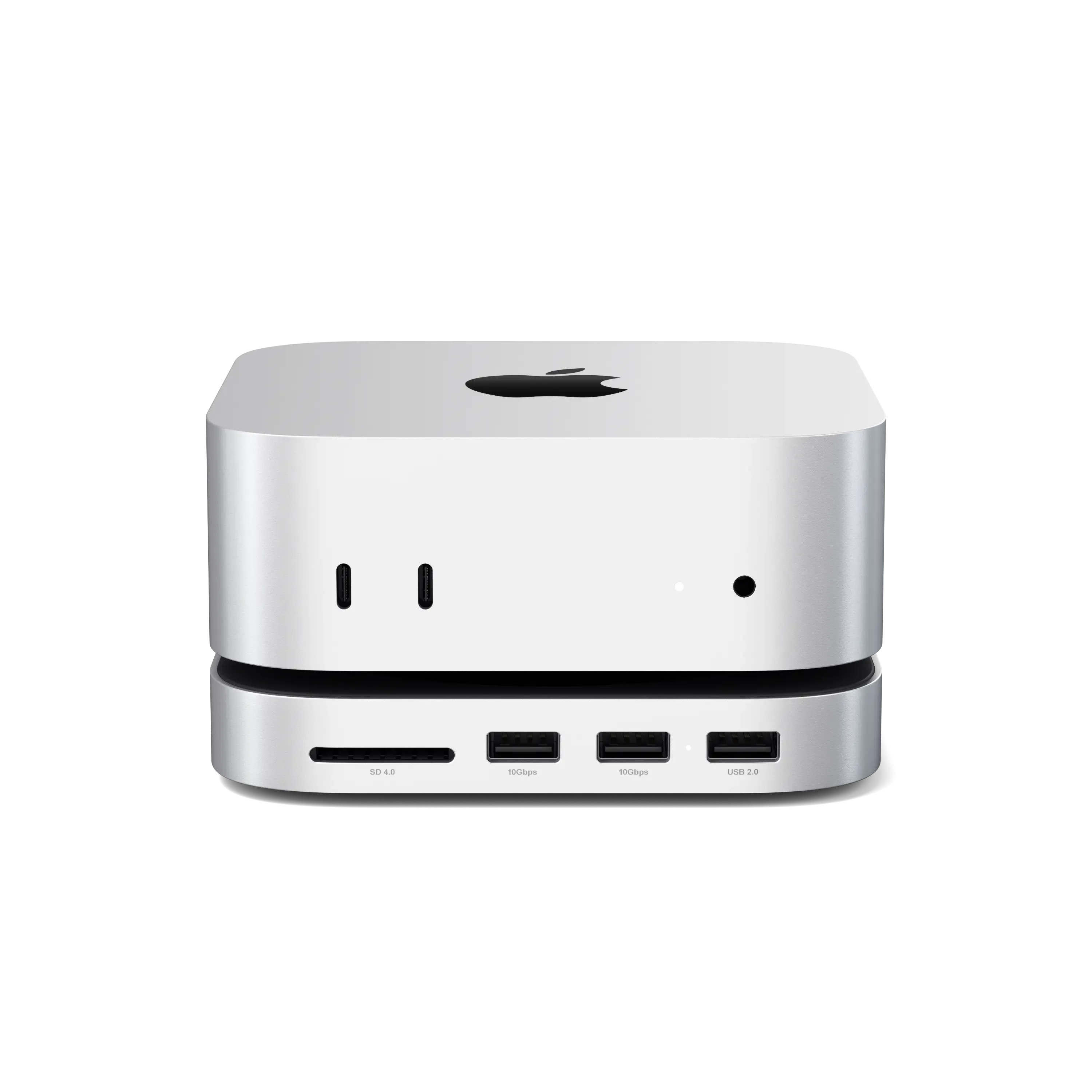
Elevate your M4 Mac Mini experience.
- First of Its Kind: One of the only hubs on the market designed specifically for the 2024 Mac Mini.
- Unmatched Storage Expansion: Supports up to 4TB and most SSD sizes (M.2 2230/2242/2260/2280) with blazing 10Gbps speeds for all your files and media.
- Legacy Port Compatibility: Reintroduces USB-A ports to seamlessly connect your favorite peripherals.
- Patented Technology: Ensures perfect airflow, wireless signal integrity, and unmatched reliability.
- Streamlined Access: Front-facing ports make connectivity a breeze.
- Premium Build Quality: Sleek aluminum construction with a slim profile and heat-dissipating vents for optimal airflow and performance.
Can I run macOS from an external drive installed in the enclosure of the Mac mini Stand & Hub with NVMe?
We suggest not using the enclosure to run macOS or any other operating systems externally. The transfer speed is capped at 10Gbps, which might cause some challenges if you try to run an operating system.
It's best to use the enclosure for external storage or as a Time Machine backup. We appreciate your understanding!
Does the hub affect the cooling of my Mac Mini or Mac Studio?
No, the Stand & Hub For Mac Mini / Studio With NVMe SSD Enclosure is designed to maintain optimal cooling. It features elevated mounting brackets and ventilation slots that promote airflow and prevent overheating during use.
What type of SSDs does the hub support?
The Stand & Hub For Mac Mini / Studio With NVMe SSD Enclosure supports NVMe M.2 SSDs in multiple sizes (M.2 2230, 2242, 2260, 2280). This versatility allows users to choose drives that best suit their storage and speed requirements, with transfer speeds of up to 10Gbps using USB-C Gen 2 technology.
Why am I not getting the advertised speeds of my NVMe on my Mac Studio/Mini Stand & Hub?
The speed ratings shown for NVMe SSDs are usually based on internal testing using direct connections inside a computer (like an M.2 slot). When you use the SSD in an external enclosure, especially one using USB 3.2 Gen 2 (10Gbps), you’ll likely see lower speeds, and that’s expected. This is because external enclosures use a different connection type that has its speed limits.
To make sure you’re getting the best results:
- Ensure your NVMe drive is properly formatted (APFS or ExFAT).
- Plug the enclosure into a USB-C port on your computer that supports 10Gbps speeds or more (look for USB 3.2 Gen 2 or a Thunderbolt/USB4 port).
You can also try:
- Testing with a different SSD.
- Reformatting the drive to a different supported format.
- Connecting the enclosure to another computer with a USB 3.2 Gen 2 or Thunderbolt port.
Finally, please make sure your system is up to date. We also recommend removing other USB-C devices and restarting your computer to refresh connections.
Why can't I hear Audio on my Headphones when connected to the Aux Port of this Hub?
You will need to head to System Settings > Sound > Output
Then plug your 3.5mm headphones (or speakers) into the port and select "USB PnP Audio Device or General USB Audio Device". Please use the following images for reference:
The Aux port will support most 3.5mm Headphones, speakers or microphones.
What M.2 SATA drives are compatible with this Hub?
Our Stand and Hub for Mac Mini/Studio with NVMe Enclosure also supports M.2 SATA drives across sizes 2242/2260/2280. With transfer speeds of up to 6Gbps, this setup facilitates storage expansion, system upgrades, file backups, data retrieval, and seamless data transfers. It's a plug-and-play solution requiring no additional drivers.
Please note: This unit does not support Drives with Heat Sinks or Double-Sided Drives.
Here are a few examples of supported M.2 SATA Drives:
M.2 SATA Drives
- Samsung 860 EVO
- Samsung 850 EVO
- Kingston UV500
- Kingston A400
- Western Digital Green
- Western Digital Blue
Please be advised the Satechi SSD Enclosure will not work with Solid State Drives with Heat Sinks due to the added thickness from the Heat Sink itself. For best thermal distribution, please use the included Thermal Pad.
Users are not limited to using one of the tested drives included above. If you wish to use a different drive not included on this list, please ensure the solid-state drive supports the same protocols and sizes as our enclosure.
Satechi is not affiliated with any of the solid-state brands listed above. This list was published for educational purposes only. Satechi is also not liable for data loss due to improper usage.
What NVMe drives are supported?
Our Stand & Hub for Mac Mini/Studio with NVMe enclosure can easily support M.2 NVMe Drives (sizes: 2280/2260/2242mm) up to 4TB, to expand storage, upgrade the system, back up files, retrieve and recover data, and transfer data. Plug and play, no driver needed.
Please note: Not compatible with Double Sided Drives or Drives with Heat Sinks.
Here are some examples of supported M.2 NVMe Drives:
- Samsung 980 / 990 Pro
- Samsung 970 Evo Plus
- Crucial P3 Plus 2TB
- Western Digital Black SN570 / SN770 / SN750 / SN770
- Western Digital Blue SN550
- Western Digital Black SN850X / WD Green SN350
- Western Digital PC SN530 / SN730
- SanDisk Extreme Gen 3.0 / 4.0
- PNY CS2140 / CS2230
- SK Hynix Gold P31 / SK Hynix Platinum P41
- Crucial P2 / P3
- Kingston NV1 / NV2 / A2000
- Seagate Barracuda Q5 / 510
- XPG Spectrix S40G
- Sabrent Rocket
- Corsair MP600 Mini (2230) / Corsair MP510
- Adata XPG SX8200
*Users are not limited to using one of the tested drives included above. If you wish to use a different drive that is not included on this list, please ensure the solid-state drive supports the same protocols and sizes as our enclosure.
Satechi is not affiliated with any of the solid-state brands listed above. This list was published for educational purposes only. Satechi is also not liable for data loss due to improper usage.
Have more questions? Submit a request
Comments
0 comments
Article is closed for comments.