


In this article
- What wattage can the cable that comes with the keyboard go up to?
- Are the keys on the Slim X2 Bluetooth Backlit Keyboard removable or replaceable?
- What are the weight and dimensions of the Slim X2 Bluetooth Backlit Keyboard?
- How can I type characters with accent marks?
- Will the backlight key(s) of the keyboard work when it is not paired to a host device?
- Keyboard Battery Percentage Indicator
- Does this keyboard have HOME and END keys?
- Will function lock work when paired to my iPad Pro?
- What is the battery capacity and battery life?
- How do I enable Num Lock when using this keyboard on a Windows computer?
- Is the keyboard available with RGB lighting?
- What is the length of the keyboard?
- How will I be able to monitor the keyboard’s battery status?
- How many brightness levels are there?
- Can you use the keyboard with Windows devices?
- How many devices can you connect to the keyboard?
- Will I be able to use this keyboard in both Bluetooth and wired mode?
- How to reset the X2 Keyboard if you are having connection issues
What wattage can the cable that comes with the keyboard go up to?
The USB-C to USB-C cable included with the keyboard can go up to 60W.
Are the keys on the Slim X2 Bluetooth Backlit Keyboard removable or replaceable?
No. The keycaps on this keyboard cannot be removed or replaced.
What are the weight and dimensions of the Slim X2 Bluetooth Backlit Keyboard?
The keyboard weighs 365 grams.
Length: 14.29 inches
Height: 4.5 inches
Width: 0.47 inches
How can I type characters with accent marks?
For Mac users, you can follow the steps outlined the guide 'Enter characters with accent marks on Mac.'
However, if you are using Windows, this function isn't supported natively. We've found that using ALT Codes works, but please bear in mind that this hasn't been fully tested, as our keyboards were primarily designed for Apple devices."

Will the backlight key(s) of the keyboard work when it is not paired to a host device?
No, the backlight key(s) will not work when the keyboard is not paired to a host device. The backlighting feature requires communication between the keyboard and the host device.
Keyboard Battery Percentage Indicator
Our keyboards do not support the battery percentage feature on macOS like the Apple Magic Keyboard or Mouse. macOS may show ~60% even when fully charged.
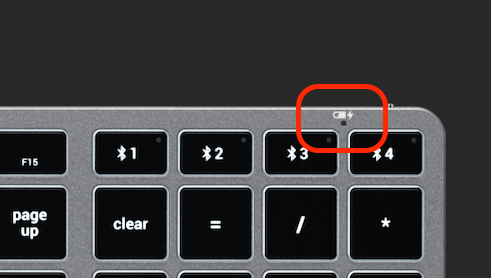
The LED indicator will blink red below 15%. We recommend charging for 3-4 hours for a full charge.
Does this keyboard have HOME and END keys?
There are no physical HOME and END keys due to the slim form factor.
Fn + Left Arrow = HOME
Fn + Right Arrow = END
Will function lock work when paired to my iPad Pro?
Yes, function lock will work when paired to an iPad or iPhone. Press FN + Esc to toggle.
What is the battery capacity and battery life?
Battery: 1300mAh
Battery life with backlight:
Level 1 - 144h
Level 2 - 81h
Level 3 - 48h
Level 4 - 32h
Level 5 - 24h
Level 6 - 19h
Level 7 - 15h
Level 8 - 13h
Level 9 - 11h
Level 10 - 10h
Backlight turns off at low battery (<15%). Standby time ~17 days. Without backlight, working time ~60 days.
How do I enable Num Lock when using this keyboard on a Windows computer?
The Clear key will act as the Num Lock key when using Windows.
Is the keyboard available with RGB lighting?
No, the keyboard is only available with a white LED backlight (10 brightness levels).
What is the length of the keyboard?
Approximately 14 inches wide by 4.5 inches in length.
How will I be able to monitor the keyboard’s battery status?
The power indicator light will flash green when the battery is low (<10%). To recharge, connect with the included USB-C cable (2-3 hours for full charge, red light turns green when complete).
How many brightness levels are there?
There are 10 levels of brightness.
F5 = decrease/turn off backlight
F6 = increase backlight
Can you use the keyboard with Windows devices?
Yes, the keyboard works with Windows 10 and 11, but it is optimized for Apple iOS and macOS. Some functions may not work on Windows.
How many devices can you connect to the keyboard?
You can pair up to 4 Bluetooth devices and switch between them using the number keys 1-4 on the top right corner.
Will I be able to use this keyboard in both Bluetooth and wired mode?
Yes. Connect via the included USB-C cable and press FN + Eject (USB) to activate wired mode.
How to reset the X2 Keyboard if you are having connection issues
Please follow these steps if you wish to reset the keyboard back to factory settings:
- Turn Keyboard Off then back On
- Press and Hold the "FN + Right Shift + Delete" keys until the green LED light on the top right corner flashes once.
- Once the green LED light flashes, your keyboard has been reset and will need to be paired to all devices again.
This step can be used if you are having connectivity issues with your device! We also recommend charging the keyboard as it may just be low on battery.
Related Articles
- Slim X2 Bluetooth Backlit Keyboard, Setup & Troubleshooting Guide
- Technical Specifications - Slim X2 Bluetooth Backlit Keyboard
- Device Compatibility - Slim X2 Bluetooth Backlit Keyboard
- Safety and Compliance Documentation - Slim X2 Bluetooth Backlit Keyboard
- Quick Start Guide - Slim X2 Bluetooth Backlit Keyboard
Comments
0 comments
Article is closed for comments.