


In this article
- What's the dimensions of each key on the Slim X1 keyboard?
- Are the keys on the Slim X1 Bluetooth Backlit Keyboard removable or replaceable?
- What are the weight and dimensions of the Slim X1 Bluetooth Backlit Keyboard?
- How do I forward-delete with the Slim X1 Bluetooth Keyboard?
- Will the backlight key(s) of the keyboard work when it is not paired to a host device?
- Keyboard Battery Percentage Indicator
- Will I be able to use Globe Key Shortcuts with my iPad Pro?
- Use common keyboard shortcuts:
- Windows 10/11 Shortcuts
- Fn+Esc
- How can I enable Mission Control on the F4 key instead of the App Switcher on this keyboard?
- How many devices can you connect to the Slim X1 keyboard?
- Is it compatible with a Kindle Fire?
- Resetting the X1 Slim Bluetooth Keyboard
- 1. Turn keyboard off
- 2. Turn keyboard back on
- 3. Hold down Fn + Right Shift + Delete
- How is the battery life for the Slim X1 keyboard?
- Does the keyboard also function as a wired keyboard?
- Is the keyboard compatible with Windows 10 devices?
- Do the Brightness keys (F1 & F2) work with external displays (eg. LG UltraFine)?
What's the dimensions of each key on the Slim X1 keyboard?
Are the keys on the Slim X1 Bluetooth Backlit Keyboard removable or replaceable?
No. The keycaps on this keyboard cannot be removed or replaced.
What are the weight and dimensions of the Slim X1 Bluetooth Backlit Keyboard?
The keyboard weighs 295 grams. The dimensions are as follows:
Length: 11.14 inches
Height: 4.5 inches
Width: 0.39 inches
How do I forward-delete with the Slim X1 Bluetooth Keyboard?
We can confirm that the "delete" key on the Slim X1 Keyboard functions as the backspace key. To complete the action to forward-delete, on either MacOS or Windows, you may press "FN + Delete" to accomplish this.
On MacOS, "Control + D" also functions as the forward-delete. We hope this information helps!
Will the backlight key(s) of the keyboard work when it is not paired to a host device?
No, the backlight key(s) of the keyboard will not work when it is not paired to a host device. The backlighting feature on most keyboards is typically controlled through software or hardware settings on the host device, and it requires communication between the keyboard and the host device to function properly. When the keyboard is not paired or connected to a host device, it lacks the necessary communication channel to control the backlighting, so the backlight key(s) will have no effect.
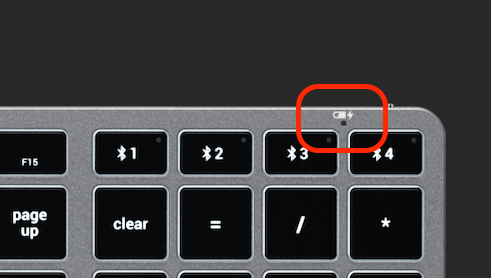
Keyboard Battery Percentage Indicator
Our keyboards does not support the battery percentage feature on macOS similar to the Apple Magic Keyboard or Mouse.
Even if the keyboard is fully charged, macOS will not reflect that because our keyboard does not support this feature. (in most cases it will display around 60% even if the keyboard is fully charged).
Our keyboard actually notifies you it is low on battery with the power LED indicator found at the top right:
Will I be able to use Globe Key Shortcuts with my iPad Pro?
iPadOS Keyboard Shortcuts
Hold the CMD key for a full list of shortcuts that are supported by our Keyboards.
Please note: Globe key shortcuts will not function with any Satechi keyboards as it is not equipped with this specific key.
*All function keys (F1-F12) will be supported when paired with macOS, iPadOS and iOS
Keys:
- Command = ⌘
- Shift = ⇧
- Option (or Alt) = ⌥
- Control (or Ctrl) ⌃
Use common keyboard shortcuts:
Here are some common keyboard shortcuts that are supported with the Satechi Keyboard:
- Command-H: Go to the Home Screen.
- Command-Space bar: Show or hide the Search field.
- Command-Tab: Switch to the next most recently used app among your open apps.
- Command-Shift-3: Take a screenshot.
- Command-Shift-4: Take a screenshot and immediately open Markup to view or edit it.
- Command-Option-D: Show or hide the Dock.
Windows 10/11 Shortcuts
On our slim and compact keyboards, the key combinations are a little different due to the chipset and programming (having that they were designed to work best within the Apple ecosystem) That being said, here are a few of the shortcuts that should help when using windows.
| Windows 10 Keyboard Shortcut | Description |
| CMD | Show the Windows 10 Start Menu |
| CMD + Tab | Launch Windows 10 Task View |
| CMD + Q | Search the web and Windows with Cortana (speech) |
| CMD + S | Search the web and Windows with Cortana (keyboard input) |
| CMD + I | Open Windows 10 settings |
| CMD + A | Open Windows 10 notifications |
| CMD + L | Lock your Windows 10 device |
| CMD + Ctrl + D | Create new virtual desktop |
| CMD + Ctrl + F4 | Close current virtual desktop |
| CMD + Ctrl + [Left][Right] | Switch between virtual desktops |
| CMD + [Left][Right][Up][Down] |
Position windows on your screen E.g. Windows + [Left] moves the current window to the left half of your screen. If you use Windows + [Up] afterwards, the current window will be placed in the upper left quarter of your screen. And, what’s very handy in my opinion: If you release the Windows key after positioning a window, Task View shows up on the opposite side of the positioned window to select and position another app. |
| CMD + H | Share content (if supported by current app) |
| CMD + K | Connect to wireless displays and audio devices |
| Windows + X | Open Start button context menu |
| Windows + G | Opens the Windows 10 Game Bar to take game screenshots and record gaming videos of Windows 10 games (works in any game app, e.g. Microsoft Solitaire Collection) |
| CMD + D | Show Windows desktop |
| CMD + E | Open Windows File Explorer |
| CMD + Space | Switch keyboard input language (if you have added at least a second one) |
| CMD + Shift + [Left][Right] | Move current Window from one monitor to another (when using a multiple monitor setup) |
| CMD + [1][2][3][…] |
Open programs that are pinned to task bar E.g. if first pinned program on your task bar is Windows Explorer (from left to right), the shortcut Windows + 1 opens Windows Explorer for you. |
| CMD + R | Run a command |
| CMD + P | Project a screen |
| Alt + Tab | Switch to previous window |
| Alt + Space | Restore, move, size, minimize, maximize or close current window. Also works like a charm for Windows 10 modern apps. |
| Alt + F4 |
a) Close current window b) If you’re on your Windows 10 desktop, open Power dialogue to shut down or restart Windows, put your device in sleep mode, sign out or switch the current user |
Command + Shift + S: copy a specific portion of the Windows 11 desktop to the clipboard
On Slim and Compact keyboards specifically:
Task manager/sleep/wake:
control+option+delete
Forward delete:
control+D
Page: opt+up/down
On full size with Function keys:
Function Lock
Fn+Esc
How can I enable Mission Control on the F4 key instead of the App Switcher on this keyboard?
You should be able to program this by going into System Settings > Mission Control > and selecting the F4 key next to Mission Control.
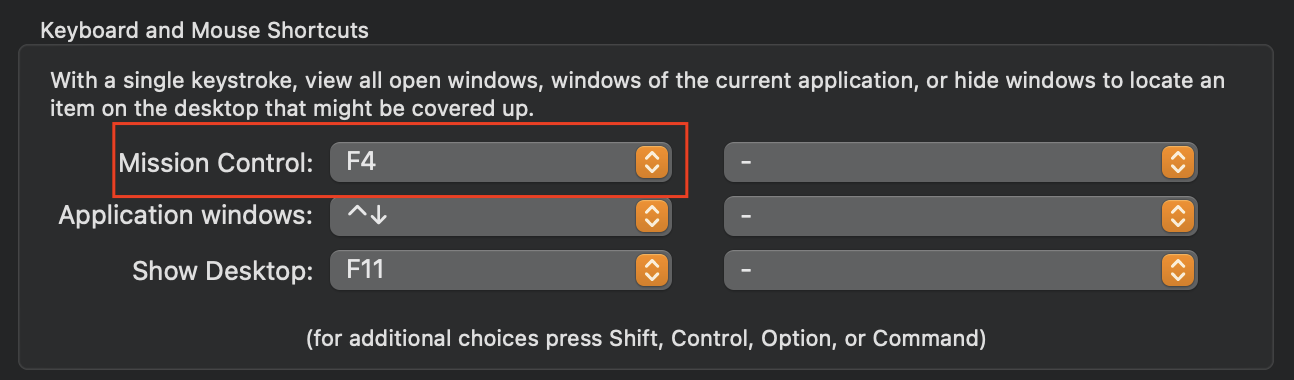
The only caveat is that you will need to hold down Fn while pressing the F4 key in order for it to override the shortcut that is already programmed on that key. You can also select a different key from that dropdown list if you prefer that.
The hotkey functions for the F3 and F4 keys cannot be reprogrammed due to our keyboard's compatibility with Apple iOS devices which uses the Spotlight Search (F3) and the App Switcher (F4) functions.
How many devices can you connect to the Slim X1 keyboard?
You are able to connect up to 3 Bluetooth devices to the keyboard and switch between them by pressing the FN + 1/2/3 keys.
Is it compatible with a Kindle Fire?
We confirm it is compatible with Kindle Fire, but only for basic typing operation.
Unfortunately, the functions keys do not work with the Kindle Fire.
Resetting the X1 Slim Bluetooth Keyboard
In order to reset your keyboard, please follow these steps:
1. Turn keyboard off
2. Turn keyboard back on
3. Hold down Fn + Right Shift + Delete
The green LED light on the top right corner of the keyboard should flash. Once the light flashes, this means the keyboard has been reset. You will have to manually pair the keyboard to your computer one more time.
*This reset is for the Slim X1, X2 X3, and Compact Series Keyboards.
How is the battery life for the Slim X1 keyboard?
A: Backlight Brightness Level - Amperage - Battery Life
Level 1 - 8mA - 125h
Level 2 - 14mA - 71h
Level 3 - 24mA - 41h
Level 4 - 35mA - 32h
Level 5 - 48mA - 24h
Level 6 - 671mA - 16h
Level 7 - 75mA - 15h
Level 8 - 90mA - 13h
Level 9 - 105mA - 9h
Level 10 - 117mA - 8h
To preserve the battery life, the backlight decreases to Level 1 if no usage after 1 minute. Then, the backlight will turn off if no usage for 3mins. Lastly, the keyboard will enter into sleep mode after no usage of 30 minutes.
The backlight turns off if the keyboard reaches low battery levels (<15%). The total standby time is 13 days and the total working time is 45h of usage.
Does the keyboard also function as a wired keyboard?
A: Yes, the Slim X1 Bluetooth Keyboard has a wired mode using the USB-C to USB-C cable included, just like our compact backlit model. Simply connect the keyboard using the included USB-C cable to your computer's USB-C port, press "FN + EJECT", and the keyboard will work as a wired keyboard.
Is the keyboard compatible with Windows 10 devices?
We have tested and can confirm that the Slim X1 Bluetooth Keyboard was designed mainly for Apple iOS and macOS devices which is why the function keys have been programmed to suit similar hotkey functions. Although it may pair/connect to your Windows device, keep in mind that not all functions of the keyboard will work with Windows devices.
Be sure to pair the keyboard by locating the Control Panel > Hardware & Sounds > Add A Device, not from the Bluetooth settings: (https://support.satechi.com/hc/en-us/articles/360029447271-Connecting-Your-Bluetooth-Keypad-Keyboard-or-Remote-to-Windows-10-Devices-v1703-and-later-)
Keep in mind, some of the function keys (F1-F12) will not work as they would with an Apple computer/device.
Do the Brightness keys (F1 & F2) work with external displays (eg. LG UltraFine)?
A: We can confirm that the brightness hotkeys for our keyboards do not work with displays that are not built into the computer. You would need to create a custom shortcut in your keyboard settings for your System Settings to do this with your external displays. Click System Settings > Keyboard > Keyboard Shortcuts > Displays.
Related Articles
- Slim X1 Bluetooth Backlit Keyboard, Setup & Troubleshooting Guide
- Technical Specifications - Slim X1 Bluetooth Backlit Keyboard
- Device Compatibility - Slim X1 Bluetooth Backlit Keyboard
- Safety and Compliance Documentation - Slim X1 Bluetooth Backlit Keyboard
- Quick Start Guide - Slim X1 Bluetooth Backlit Keyboard
Comments
0 comments
Article is closed for comments.