


In this article
- HDMI/Mini-DP Firmware Update - Requires at least Windows 10 device
- Fixing Ethernet Issues - Windows 10 Users
- How to remove the Ethernet cable from the Type-C Multimedia Adapter?
- Can I connect one or more external hard drives?
- Will this Type-C Multimedia Adapter support 1440p @ 60hz if you are using two monitors?
- What is the difference between the Multi-Port Adapter verses the newest Multimedia Adapter?
- Fixing Ethernet Issues
HDMI/Mini-DP Firmware Update - Requires at least Windows 10 device
First, download the ZIP file at the end of this article. Then use the following instructions to complete the firmware update:
Fixing Ethernet Issues - Windows 10 Users
If you are a Windows user experiencing issues connecting your Ethernet, please try the following steps and see if it resolves the issue:
Check your drivers - The first thing to check is that the correct driver for your Ethernet card is installed on the system.
1. To do so, right-click on the Start button and select Device Manager. This will bring up the Device Manager window. Here you can see all the devices installed on the system and their status.

2. Expand the Network adapters list and check whether there are any issues with the devices. Identify the Ethernet card, in our case, it should be under RealTek.

3. Right-click on it and select Properties. In the Device status window, it should say that your device is working properly, like in the image below.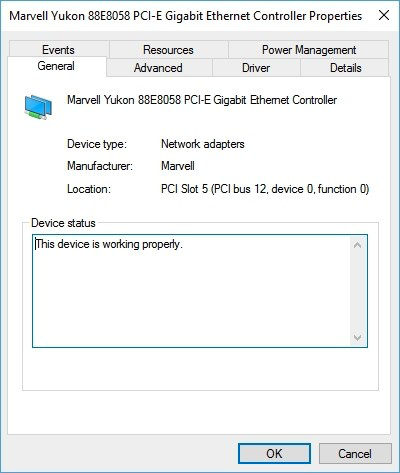
4. If your Ethernet controller icon has a question mark or an exclamation point, then we recommend reinstalling the correct driver for it. Use the attached file (Win10_RealTek_Drivers_Install.zip) to download the drivers and controllers.
If this does not work and the issue persists, please submit a support request.
What speeds does the Ethernet port support?
The ethernet supports the following speeds:
- 10 Mbps
- 100 Mbps (Fast Ethernet)
- 1000 Mbps (Gigabit Ethernet)
NOTE: The network speeds depend upon the cabling, networking equipment, and network traffic.
How to remove the Ethernet cable from the Type-C Multimedia Adapter?
To remove, gently pinch the Ethernet connector and remove it from the port.
Can I connect one or more external hard drives?
We would recommend only connecting it to one of the USB-A ports and connecting only one external hard drive at a time as two will require too high of a power draw from the hub adapter and may not function correctly.
Will this Type-C Multimedia Adapter support 1440p @ 60hz if you are using two monitors?
Yes, you can output to two monitors using the HDMI & DP ports at 1440p at 60Hz. Please note, for a 4K monitor, the max refresh rate is 30Hz.
In “mirrored mode”, your display will be mirrored to two external monitors. In “extended mode”, your display will extend to one monitor and mirror the second monitor.
What is the difference between the Multi-Port Adapter verses the newest Multimedia Adapter?
Our newest Multimedia Adapter features all your favorite legacy ports bundled into 1 sleek, aluminum adapter. It features a USB-C Power Delivery 3.0 port to charge your PD-compatible devices (up to 49W), 4K HDMI (30Hz), 4K Mini DisplayPort (30Hz), Gigabit Ethernet, Micro/SD card slots and 3 USB 3.0 ports for access to all your devices.
Enjoy brilliant display on your HDMI or DP monitor, up to 4K @ 30Hz. Display output is supported only on devices equipped with DisplayPort over USB-C (Alt mode).
Fixing Ethernet Issues
1) Disconnect your Multi-Port Adapter from your computer
2) Open up your Network Preferences
3) Manually remove "USB 10/100/1000 LAN" from your Network by clicking the "-" symbol

4) Plug your Multi-Port Adapter back into your computer
5) Manually add in "USB 10/100/1000 LAN" to your Network Preferences by clicking the "+" symbol
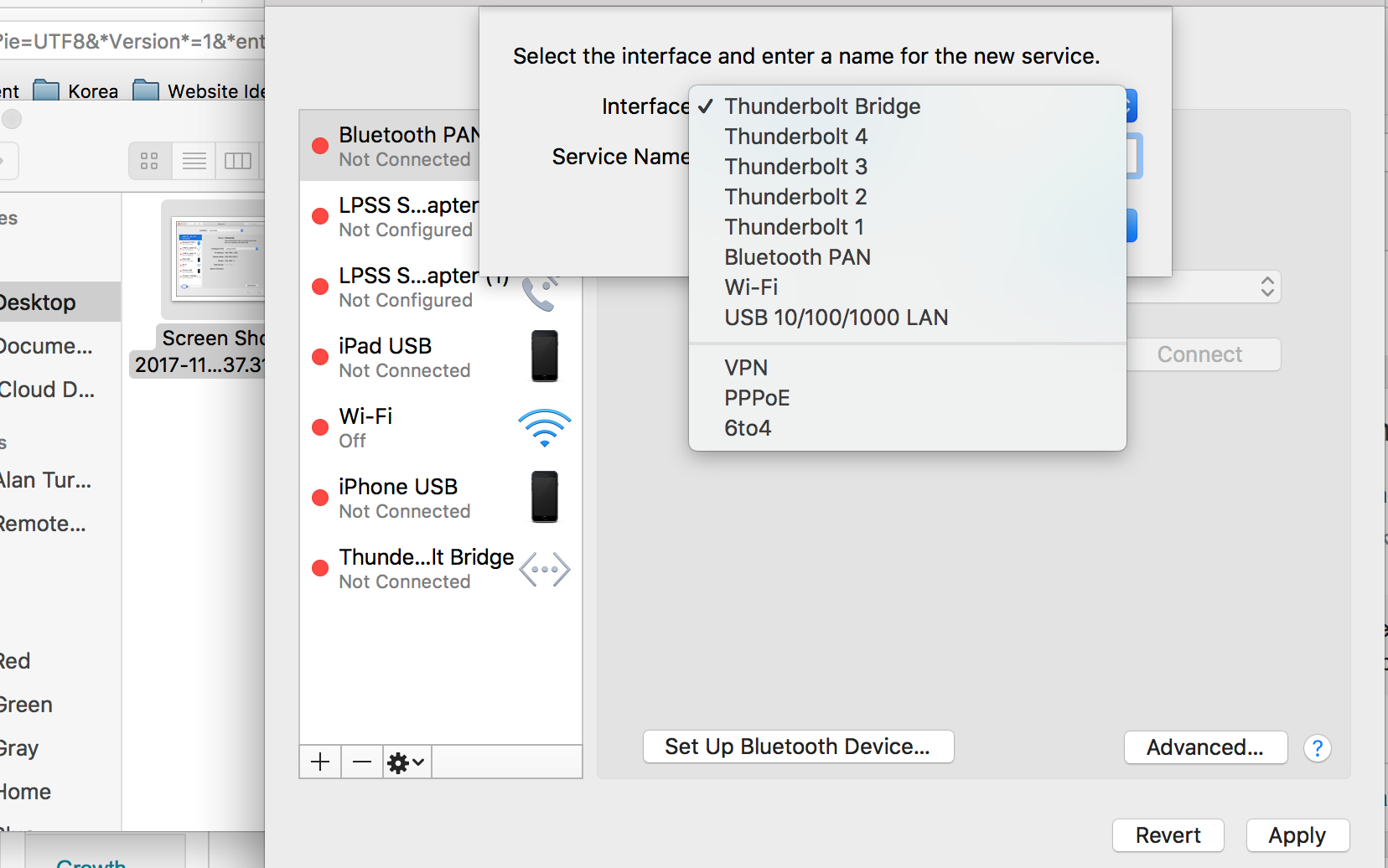
6) After adding your Ethernet back in, please click on "Advanced" tab
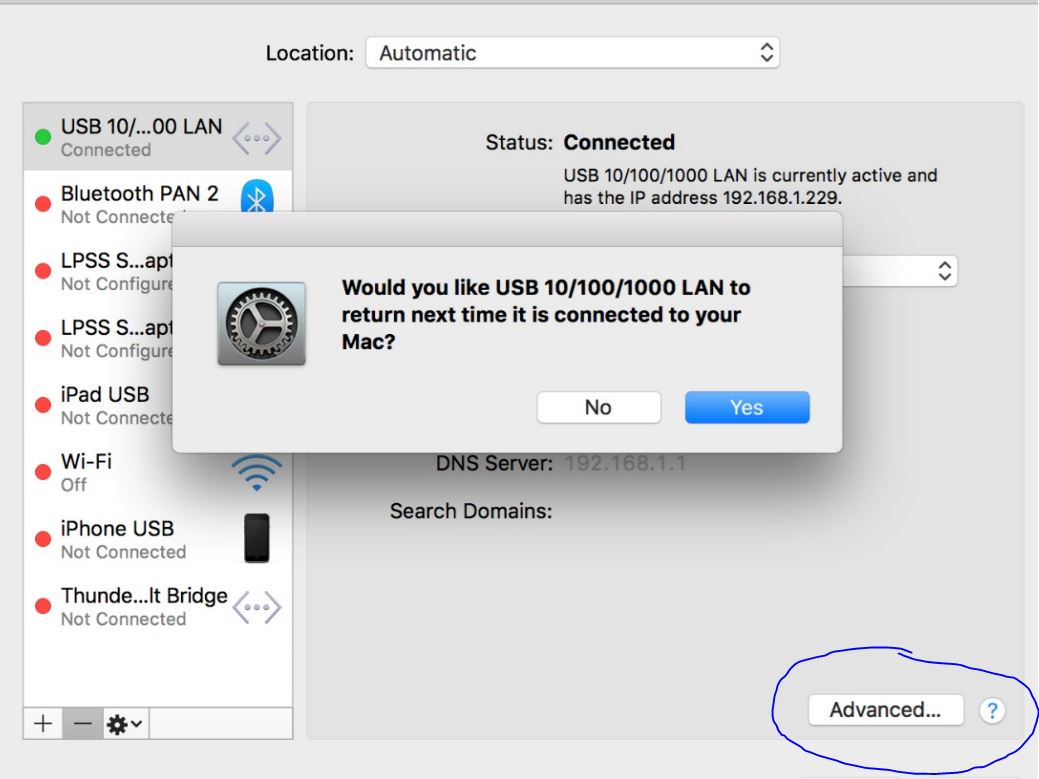
7) In the "Advanced" tab, click on "Renew DHCP Lease" button
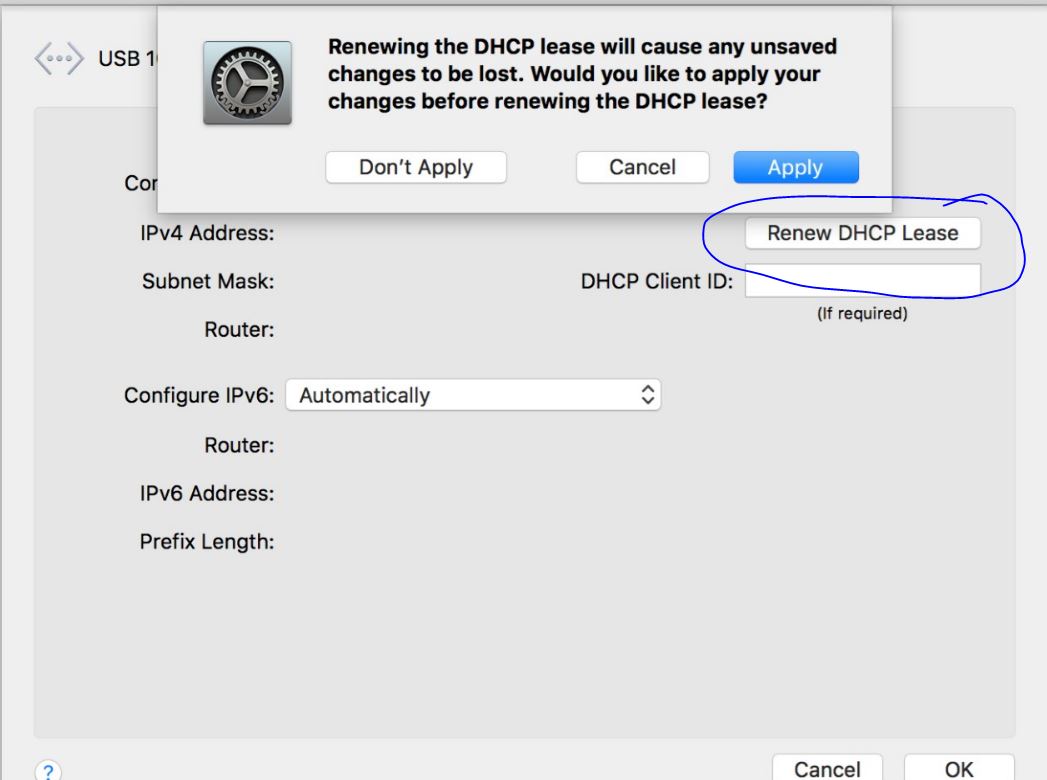
8. Click "OK" and check your Ethernet connection. "USB 10/100/1000 LAN" should be connected now.
If you are unable to add the USB LAN interface back in after this, please do the following Shut down your Mac completely. Wait 30 seconds, then press the power button to turn it back on. (On Intel Macs, you can also try an hardware controller reset: shut down, hold Shift+Control+Option+Power for 10 seconds, then release and power on.).
Remove the Type-C Hub from the Macbook and follow the below instructions :
- Step 1: Completely shut down the computer.
- Step 2: Attach the MagSafe or USB-C power adapter to your computer so you have a power source.
- Step 3: Press the left-side Shift (⇧), Control, and Option keys, along with the power button on your keyboard all at the same time. (for 10 seconds)
- Step 4: Release all of the keyboard keys at the same time, including the power button.
- Step 5: Turn your computer back on using the power button.
Reconnect the Type-C Hub to the Macbook.
Instructional video:
Have more questions? Submit a request
Related Articles
- Type-C Multimedia Adapter - Setup & Troubleshooting Guide
- Internal Troubleshooting - Type-C Multimedia Adapter | ST-TCMM8PAS ST-TCMM8PAM
- Quick Start Guide - Type-C Multimedia Adapter | ST-TCMM8PAS ST-TCMM8PAM
- Technical Specifications - Type-C Multimedia Adapter | ST-TCMM8PAS ST-TCMM8PAM
- Device Compatibility - Type-C Multimedia Adapter | ST-TCMM8PAS ST-TCMM8PAM
Comments
0 comments
Article is closed for comments.