


In this article
- How to Reset the Keyboard
- How do I switch between devices when connected to multiple devices via Bluetooth?
- Is there a way to use the Slim X3 keyboard with FileVault enabled?
- What are the weight and dimensions of the Slim X3 Bluetooth Backlit Keyboard?
- How do I enter characters with accent marks?
- Keyboard Battery Percentage Indicator
- Will the backlight key(s) of the keyboard work when it is not paired to a host device?
- How do I enable Num Lock when using this keyboard on a Windows computer?
- How is the battery life for the Slim X3 keyboard?
- Does the keyboard also function as a wired keyboard?
- Is the keyboard compatible with Windows 10 devices?
- Do the Brightness keys (F1 & F2) work with external displays (e.g., LG UltraFine)?
How to Reset the Keyboard
To reset your keyboard, please follow these steps:
• Turn the keyboard off.
• Turn the keyboard back on.
• Press and hold Fn + Right Shift + Delete until the green LED in the top-right corner begins to flash.
Once the LED flashes, the reset is complete.
Please note that after resetting, you’ll need to manually re-pair the keyboard with your computer.
How do I switch between devices when connected to multiple devices via Bluetooth?
The Slim X3 keyboard allows you to pair with up to four devices. You can switch between them by pressing the corresponding Bluetooth button (1, 2, 3, or 4) on the keyboard. Be sure to pre-assign your devices to each desired Bluetooth button.
Is there a way to use the Slim X3 keyboard with FileVault enabled?
While the Slim X3 keyboard cannot be used for password entry at startup with FileVault enabled, it will work as normal once you log in and the Bluetooth connection is re-established. To avoid issues, you may temporarily disable FileVault or use an Apple keyboard for login purposes.
What are the weight and dimensions of the Slim X3 Bluetooth Backlit Keyboard?
Weight: 440 grams
Length: 16.65 inches
Height: 4.5 inches
Width: 0.47 inches
How do I enter characters with accent marks?
For Mac users, you can follow the steps outlined in the guide Enter characters with accent marks on Mac.
For Windows, this function isn’t supported natively. ALT Codes may work, but this hasn’t been fully tested as our keyboards were primarily designed for Apple devices.

Keyboard Battery Percentage Indicator
Our keyboards do not support the battery percentage feature on macOS similar to the Apple Magic Keyboard or Mouse. macOS may display ~60% even when fully charged.
Instead, the keyboard notifies you when low on battery via the power LED indicator at the top right:
The LED light will blink red when it has reached below 15%.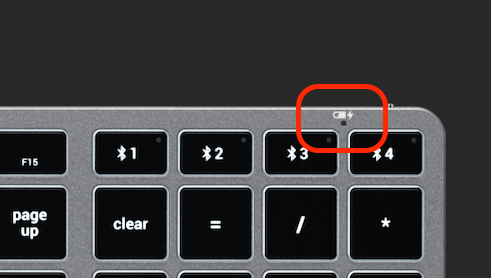
Will the backlight key(s) of the keyboard work when it is not paired to a host device?
No. The backlight key(s) require communication with a host device to function. Without a paired device, the backlight will not turn on.
How do I enable Num Lock when using this keyboard on a Windows computer?
The Clear key will act as the Num Lock key when using Windows.
How is the battery life for the Slim X3 keyboard?
Backlight Brightness Level, Amperage, Battery Life
Level 1, 9mA, 144h
Level 2, 16mA, 81h
Level 3, 27mA, 48h
Level 4, 40mA, 32h
Level 5, 53mA, 24h
Level 6, 67mA, 19h
Level 7, 82mA, 15h
Level 8, 97mA, 13h
Level 9, 113mA, 11h
Level 10, 129mA, 10h
To preserve battery life:
• Backlight decreases to Level 1 after 1 minute of inactivity
• Turns off after 3 minutes
• Keyboard enters sleep mode after 30 minutes
• Backlight turns off automatically when battery is <15%
Standby time: 13 days
Working time: ~45 hours
Does the keyboard also function as a wired keyboard?
Yes. The Slim X3 can be used in wired mode with the included USB-C to USB-C cable. Simply connect it to your computer, press FN + EJECT, and the keyboard will work in wired mode.
Is the keyboard compatible with Windows 10 devices?
Yes. The Slim X3 Bluetooth Keyboard is compatible with Windows 10. Pair through Control Panel > Hardware & Sounds > Add A Device (not via standard Bluetooth settings:(https://support.satechi.com/hc/en-us/articles/360029447271-Connecting-Your-Bluetooth-Keypad-Keyboard-or-Remote-to-Windows-10-Devices-v1703-and-later-)
Note: Some function keys (F1-F12) may not work as they would on Apple devices.
Do the Brightness keys (F1 & F2) work with external displays (e.g., LG UltraFine)?
No. Brightness hotkeys only work with built-in computer displays. For external displays, you can create a custom shortcut in System Settings.

Related Articles
- Slim X3 Bluetooth Backlit Keyboard, Setup & Troubleshooting Guide
- Technical Specifications - Slim X3 Bluetooth Backlit Keyboard
- Device Compatibility - Slim X3 Bluetooth Backlit Keyboard
- Safety and Compliance Documentation - Slim X3 Bluetooth Backlit Keyboard
- Quick Start Guide - Slim X3 Bluetooth Backlit Keyboard
Comments
0 comments
Article is closed for comments.